Oct 5, 2026
What happens to the Gemini Gems you assigned in Google Classroom
Google is replacing Gems with skills, but skills won't be available in Google Classroom. What happens to the Gems you assigned to students, the dates that matter, and where to move each one before June 2027.

Sohan Choudhury | Co-founder and CEO of Flint

Google announced on September 30 that skills will replace Gems. Most of the coverage since then tells teachers to rebuild their Gems as skills. That advice works for a Gem you use yourself, like one that drafts parent emails or plans lessons.
It doesn't work for a Gem you assigned to students in Google Classroom. Google says skills won't be available in Classroom, and students can't use skills from a school account today. So the tutor you built for your class has no direct replacement. This post covers what happens to those Gems, the dates that matter, and where you can move each one.
The dates for Classroom Gems
These come from Google's Workspace Updates announcement and its Classroom Help page on Gems, both checked October 5, 2026.
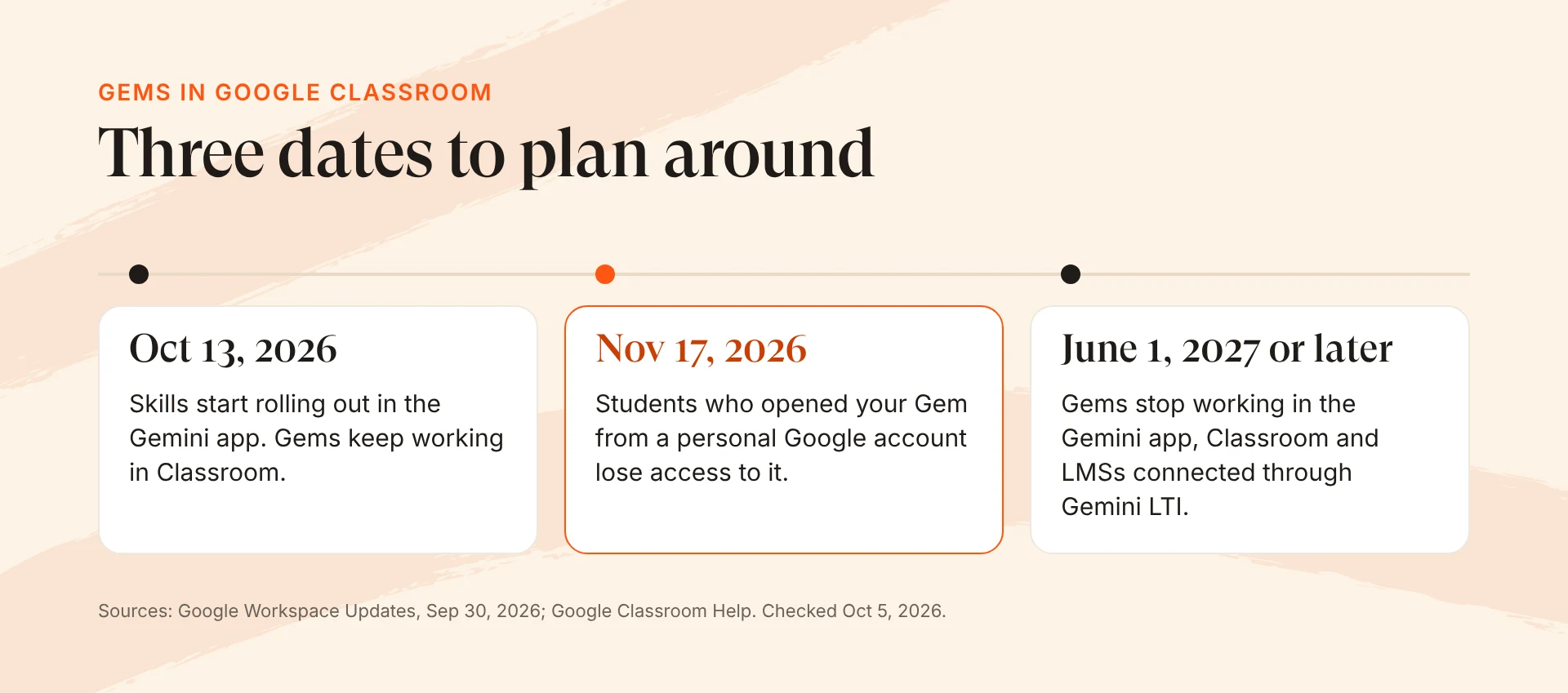
| Date | What changes for teachers using Gems in Classroom |
|---|---|
| October 13, 2026 | Skills start rolling out in the Gemini app. Gems keep working in Classroom. |
| November 17, 2026 | Gems move to the Settings panel of the Gemini app. If you assigned a Gem to a student's personal Google account rather than their school account, that student loses access to it. |
| No sooner than June 1, 2027 | Gems can no longer be created, edited or used. Google removes them from the Gemini app, Google Classroom, and LMSs connected through Gemini LTI (Canvas, Schoology and Moodle). |
Business and enterprise accounts lose Gems no sooner than March 1, 2027, so schools get three extra months. Until June, you can keep creating and assigning Gems in Classroom.
Will your Classroom Gems turn into skills?
Google's own documents disagree.
The Classroom Help page says: "Existing Gems in Classroom will convert into skills in the Gemini app in a draft state, retaining their name, description, instructions and any uploaded knowledge files."
Google's Gemini Gems and Skills Transition Guide for Education says: "Gems created in the Gemini app will automatically migrate to skills on or after June 1, 2027. However, Gems created in Google Classroom or third party LMS' via Gemini LTI will not be automatically migrated, as skills will not be available directly in those tools."
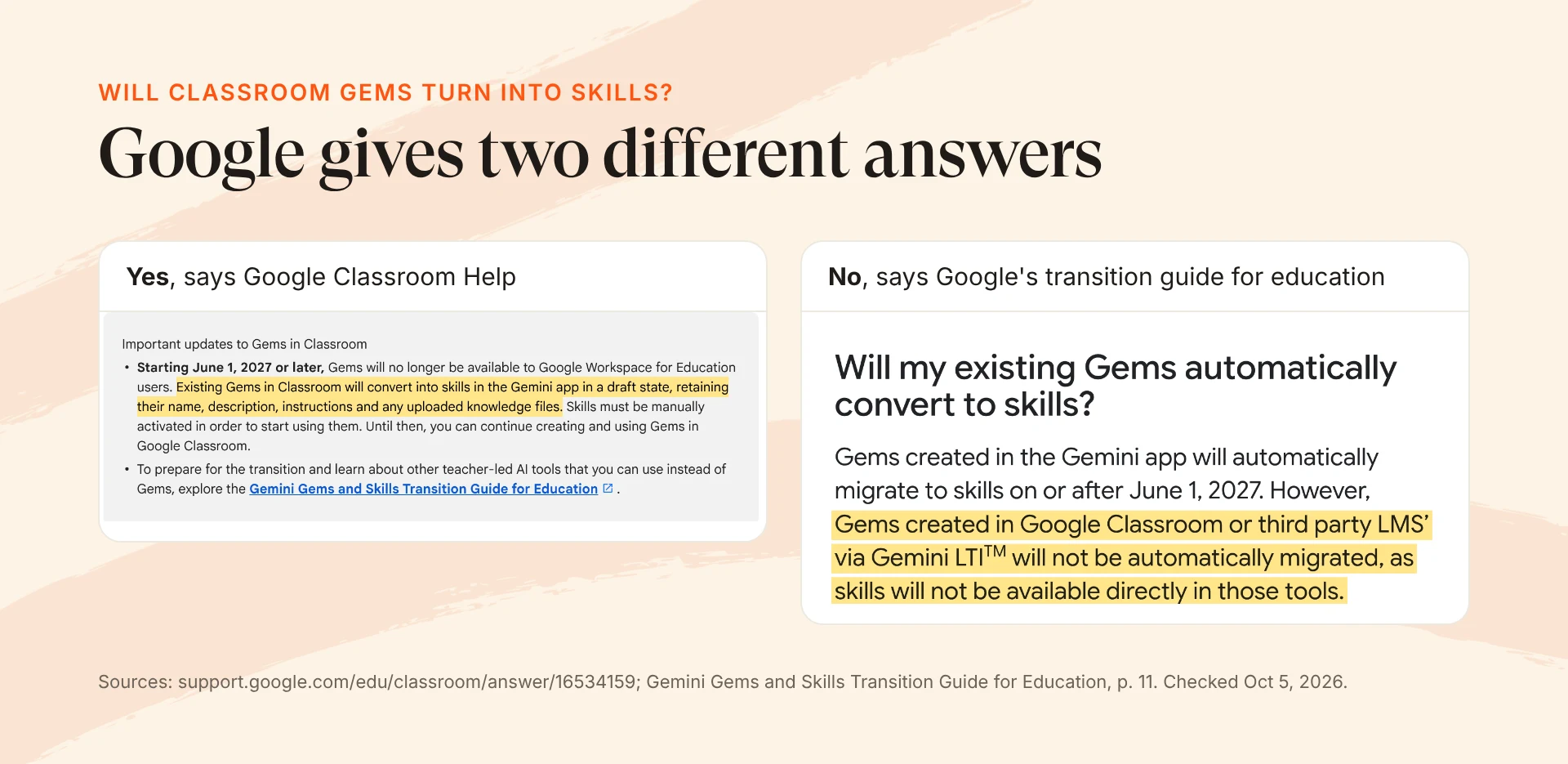
Both documents agree on the part that matters for your students. A skill lives in your own Gemini app, not in Classroom, and the assignment that pointed students to your Gem stops working. Even if your Gem converts, you get a draft skill in your own Gemini app, not something students can open from the Classwork tab. Don't wait to find out which document is right. Copy your Gem's instructions and note which knowledge files it uses now, while you can still open and edit the Gem.
Why skills can't replace a Gem you assigned
A Gem in Classroom did three things for a teacher: it followed your instructions, it drew on files you chose, and students opened it from an assignment. Skills keep the first two and drop the third.
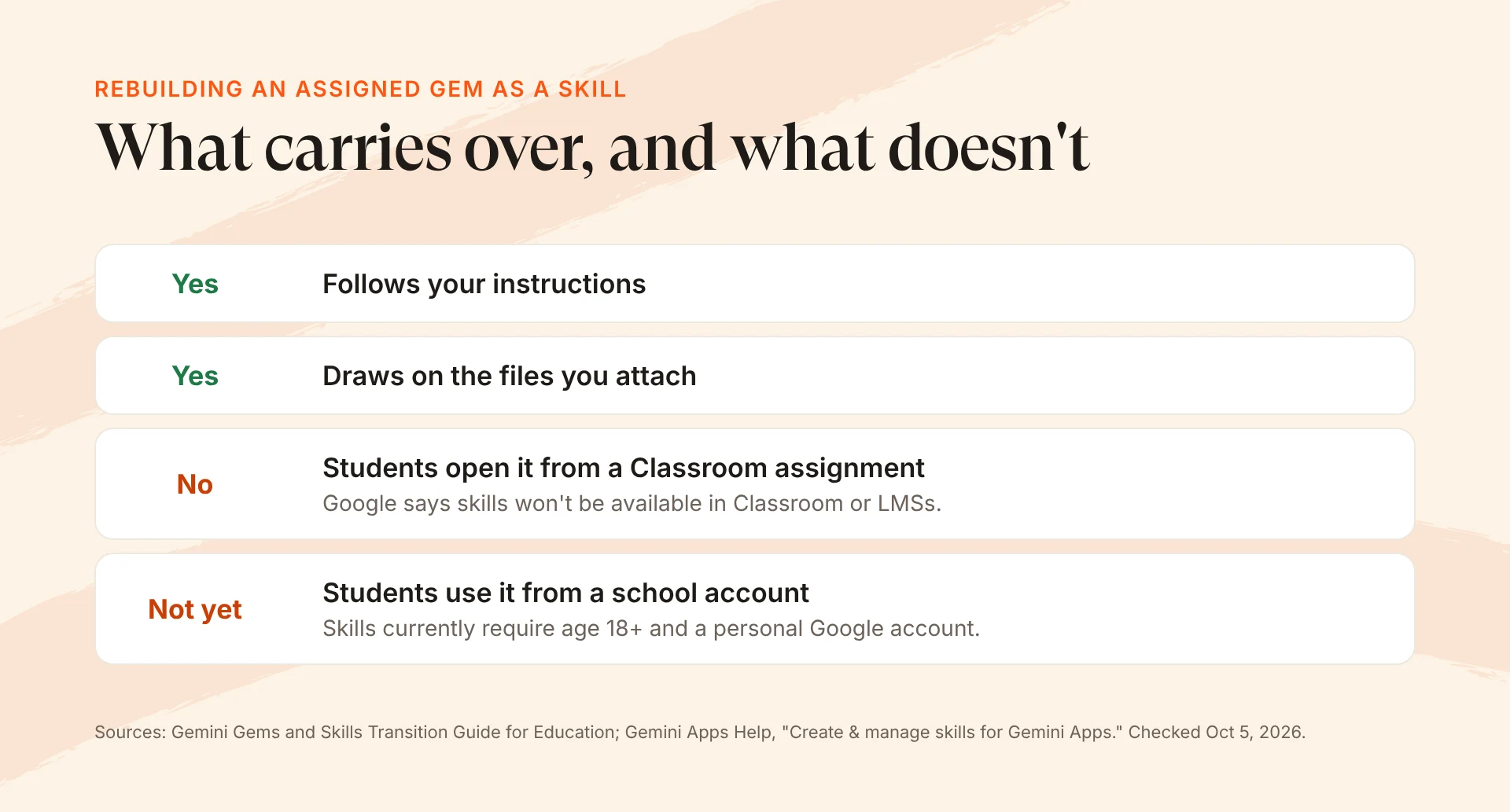
- Skills aren't coming to Classroom. The transition guide says so directly: "skills will not be available directly in those tools."
- Students can't use skills from a school account yet. Google's Gemini Help page on skills lists the requirements as being 18 or over and signing in with a personal Google account: "For now, this feature isn't available if you sign in with a work or school Google Account." Google says education access is coming, including for students of all ages, but hasn't given a date.
- Skills inside Docs, Gmail and other Workspace apps are adults-only. Google's announcement says they're "available only to users over age 18," and for schools they need the paid Google AI Pro for Education add-on.
Sharing is the other gap. Google's guide suggests that after you rebuild a Gem as a skill, you "share your new skill" with students. Skills are shared through Google Drive, outside Classroom, and a student still needs an account that can use skills.
What Google recommends instead
For Classroom, Google points teachers to two tools:
Gemini Notebook (called NotebookLM until July). You can attach a notebook to an assignment or material in Classroom today, and students chat with it, grounded in the sources you added. Google's guide says a notebook "keeps student Q&A anchored to your files," which is stricter than Flint, as described below. Classroom shows which students opened the notebook and which started a conversation, with AI-generated insight summaries of common themes and questions. When Gemini activity is on, you can also read each student's chat transcript after the fact, though a chat the student deletes disappears from your view.
Guided Learning in Classroom. Google's guide describes it as a way for teachers to "create AI learning experiences informed by class content... while giving educators visibility and control." It's marked "Coming soon to Google Classroom," with no date. The Guided Learning mode students can already turn on in the Gemini tab is a different thing. Common Sense Media found that mode "easy to switch out of."
Gemini Notebook is included in every Workspace for Education edition and already sits inside Classroom, with no new login for students. If your Gem was a study aid, like quizzing students on a reading or answering questions about a lab manual, a notebook is the closest match and the easiest move.
The harder case is a Gem whose instructions did the teaching: "don't give the answer, ask a question," "stay in character as a historical figure," "give feedback against this rubric." A notebook's owner can set a custom chat style, and when Gemini activity is on you can read students' transcripts afterwards. Guided Learning in Classroom may cover some of this once it ships.
A checklist for each Gem you assigned
- Make a list. Open Classroom's Classwork tab in each class and note every post with a Gem attached. A Gem you shared stays shared even after you delete its post: Google says deleting the post "doesn't remove student access to the Gem in Gemini." To remove access, change the Gem's sharing settings in Gemini.
- Check for personal accounts before November 17. If any students opened a Gem from a personal Gmail account, move them to their school account or give them another tool before that date.
- Save the Gem. Copy its title, description and instructions into a document. List the knowledge files you attached (a Gem holds up to 10) and where they live in Drive, so you can reattach them.
- Decide where each Gem goes. A study aid can move to a Gemini Notebook. A Gem that tutors needs a tool that follows your instructions with students and lets you see what they wrote. A Gem nobody opened this year can simply retire.
- Re-test with real questions. Ask the new version the three questions students asked most. Then ask one where a student wants the answer handed to them.
Rebuilding a Classroom Gem in Flint
This is the part where I have a stake: Flint is a student AI platform, so tutor-style Gems are the kind of thing teachers build with us. Here's what moving one over looks like, including what Flint doesn't do.
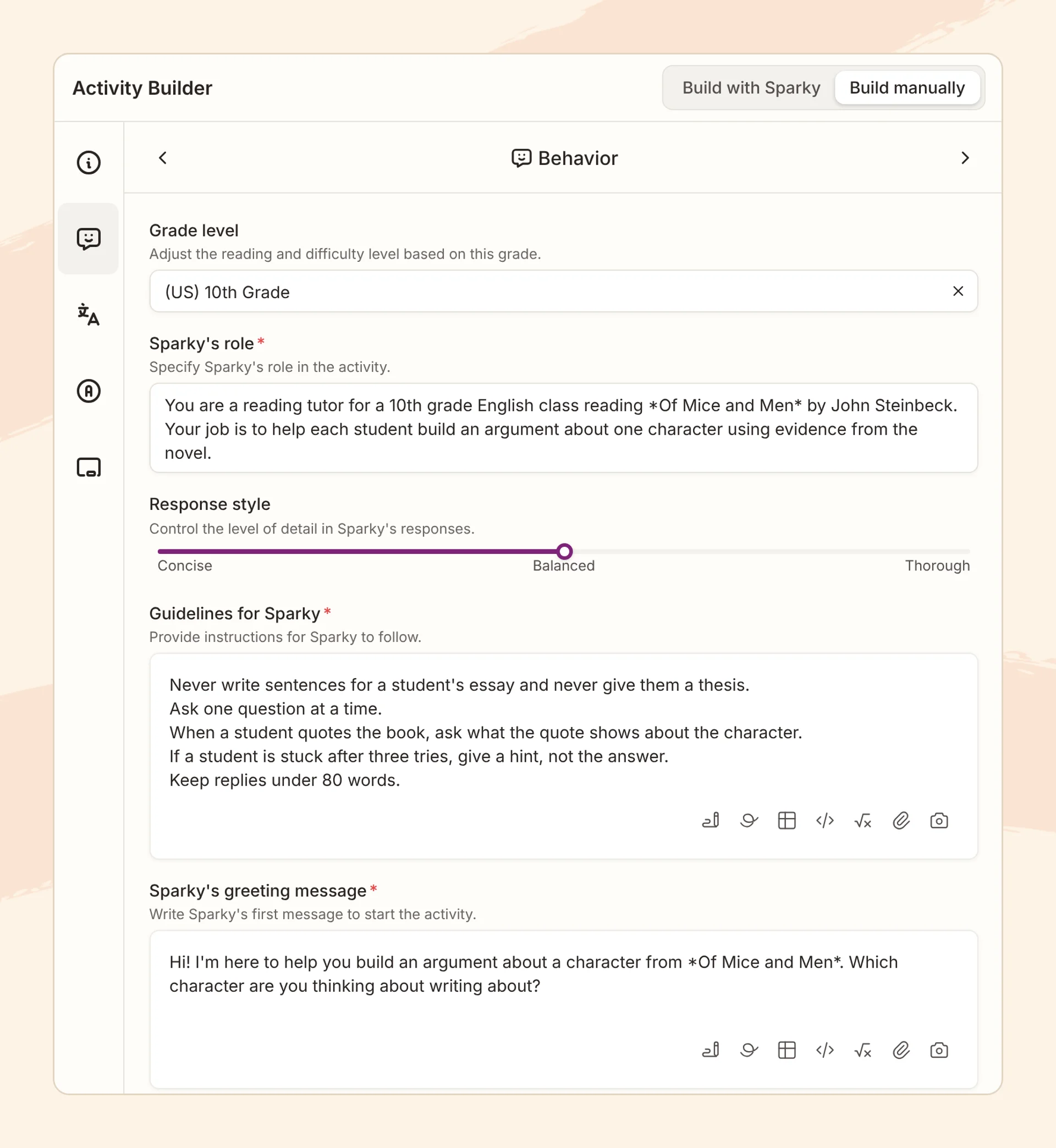
Paste in what you saved. In Flint, you create an activity by describing it, and you can paste your Gem's instructions straight into that chat. If something is missing, Flint asks follow-up questions. Click the activity thumbnail in the chat to open Activity settings. Its Activity behavior section shows the grade level, Flint's role and the guidelines it wrote, and you can edit them directly. There's no Gem import, so this is copy and paste.
Here's an example: a 10th grade reading tutor Gem for Of Mice and Men, pasted into Flint's activity builder.
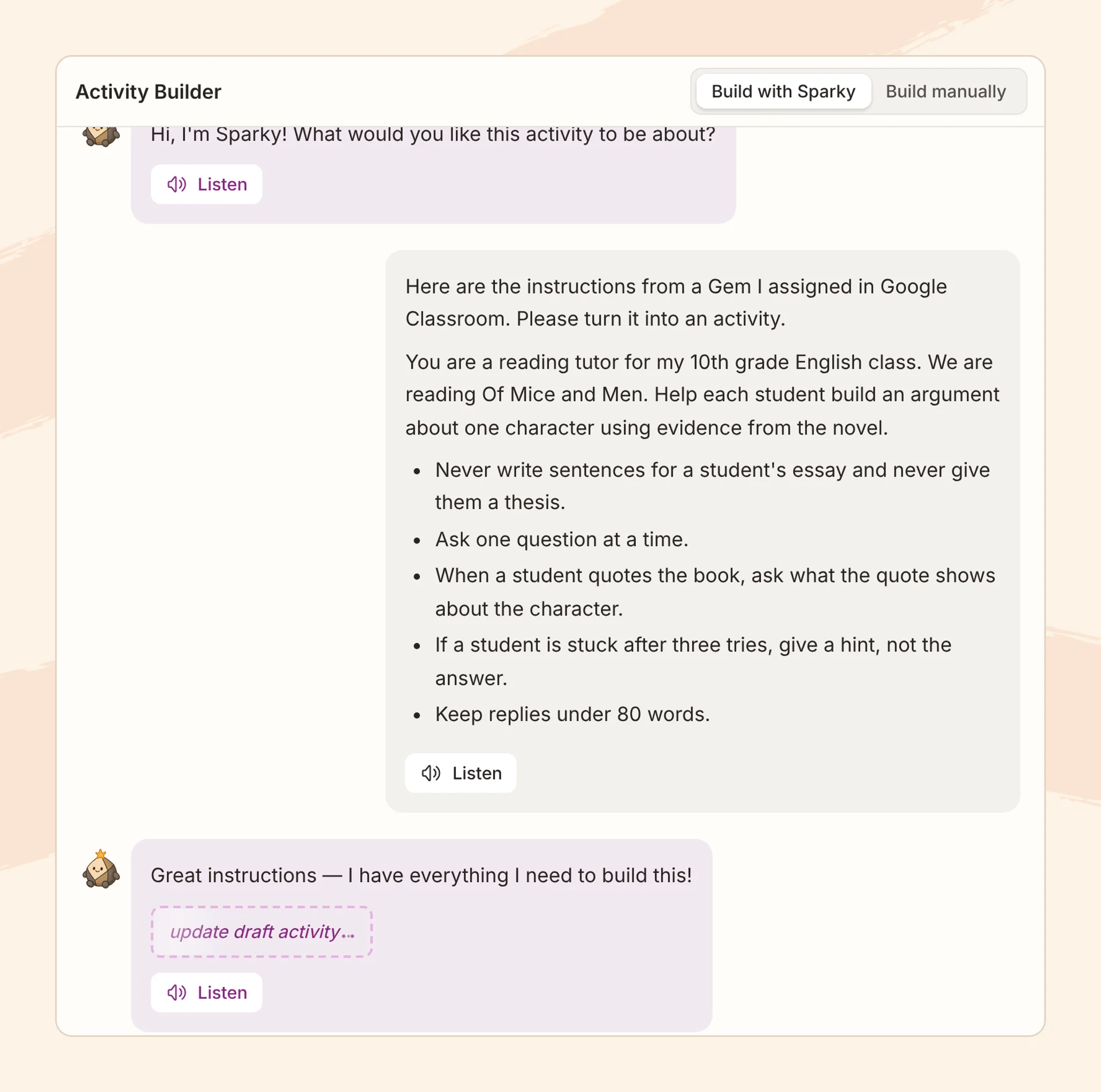
In the Activity behavior section of Activity settings, the Gem's five rules appear word for word under "Guidelines for Sparky," next to the grade level and Sparky's role.
Upload the same files. Flint takes PDFs, Docs, Slides, spreadsheets, images and more. Sparky leans on your files but can still draw on what the model knows, so it isn't as strictly limited to your sources as a Gemini Notebook.
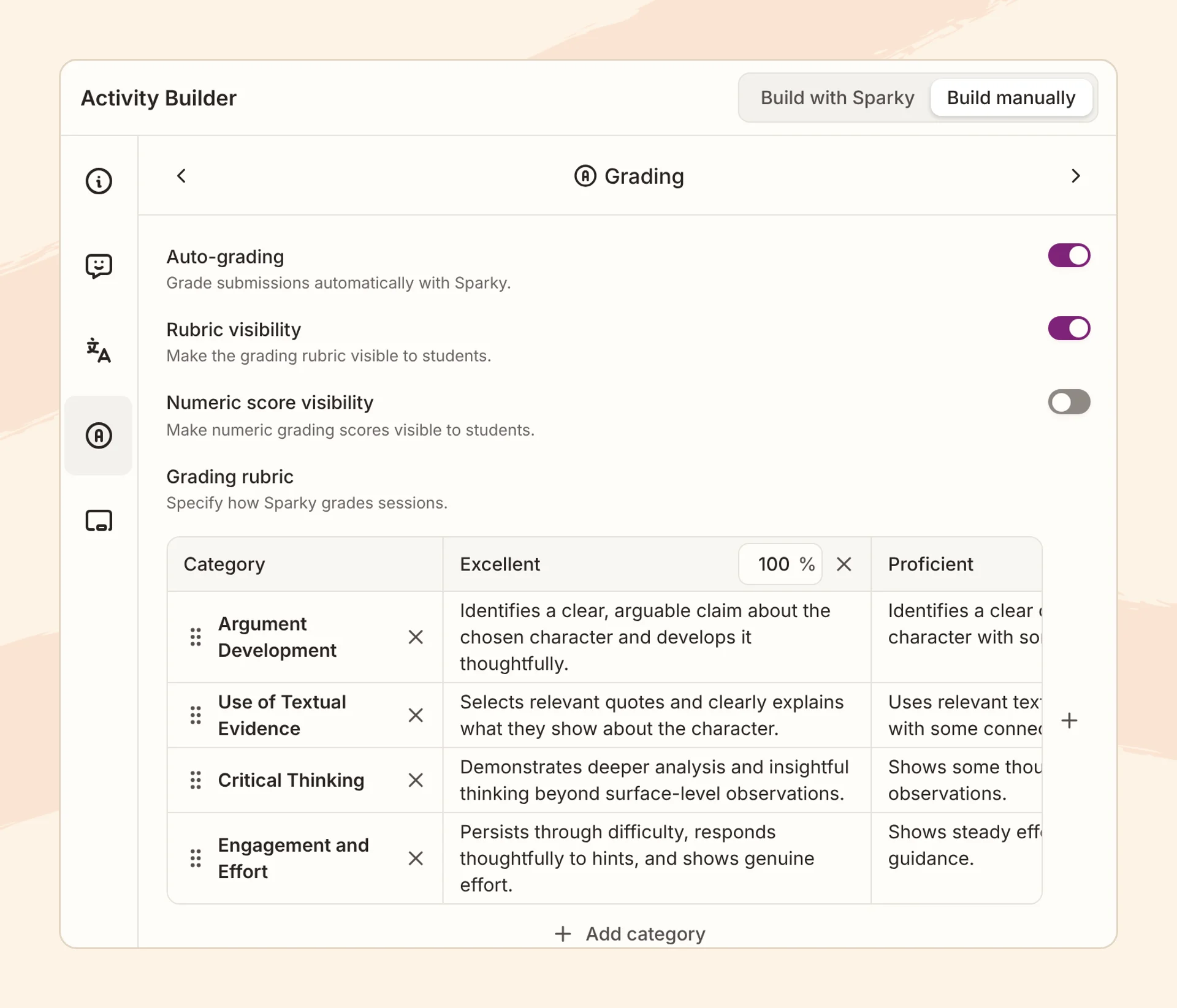
Add what a Gem couldn't do. You can add a rubric so Sparky grades and gives feedback on each category you care about. While students work, you can open any session and read the conversation so far, in progress or finished. If a student writes something about self-harm, Flint alerts the school's moderators and the class owner, and schools can't turn that alert off.
For the example Gem, Flint drafted a four-category rubric from the instructions: argument development, use of textual evidence, critical thinking, and engagement and effort. You can edit any category or switch grading off.
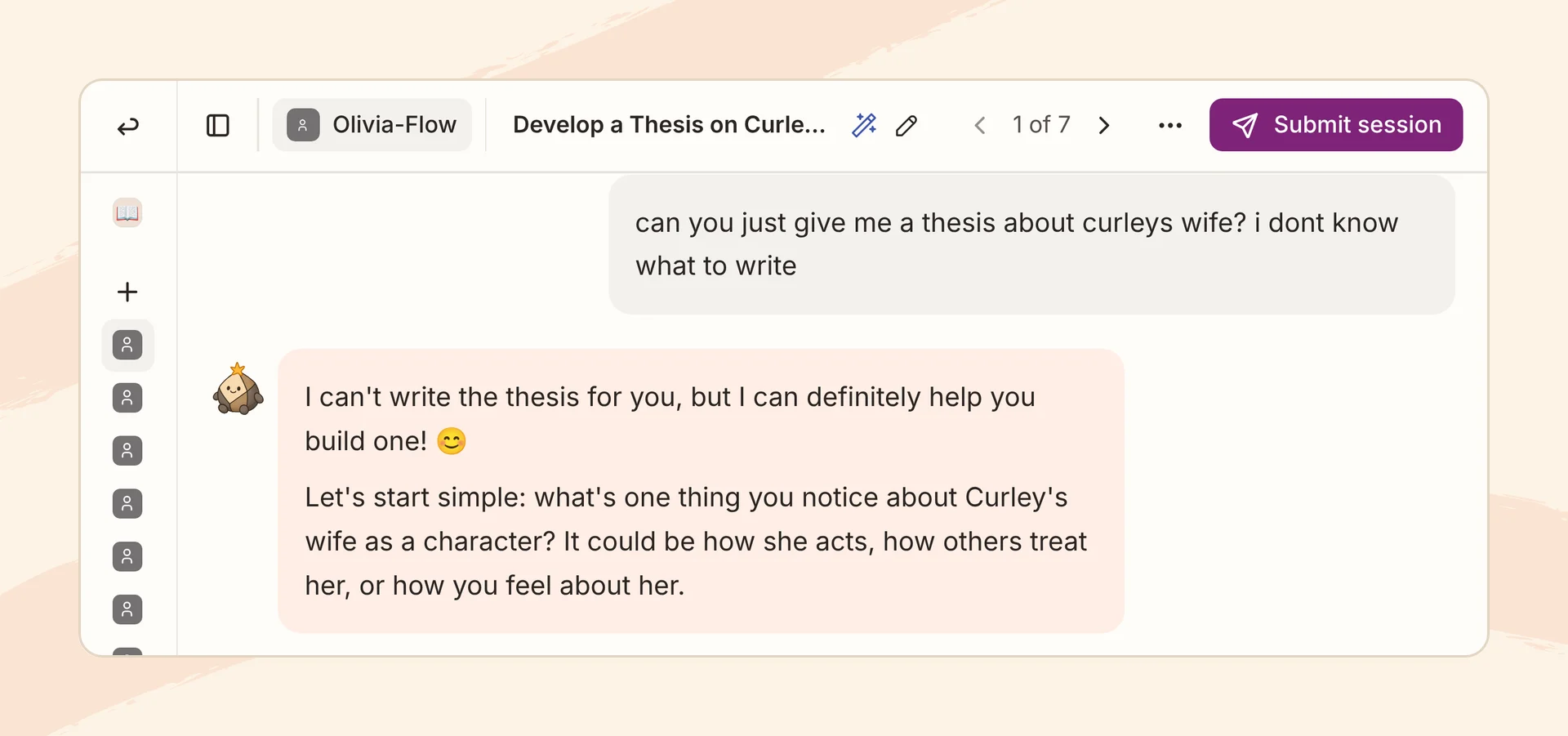
This is the teacher's view of one student's session. The student asked Sparky to write a thesis, and Sparky followed the Gem's first rule.
Give students the link in Classroom. You copy the activity link and post it as a material or assignment link, and students sign in with their school Google account. If your district restricts students' Google sign-ins to approved apps, an admin has to allow Flint first. Flint has no built-in Classroom posting and doesn't send grades back to Classroom, so you'd add scores yourself or export Flint's gradebook as a CSV. A school admin can sync Classroom rosters to Flint on a paid plan.
Vinnie Vrotny, Director of Technology at The Kinkaid School, compared building in Flint with the tools teachers used before: "To me, it is very similar to the development of custom GPTs, but it's much more accessible and easy to build as compared to a GPT or Anthropic project" (Kinkaid case study).
Flint is free for up to 80 users, teachers and students combined, which is enough to move one class's Gems over and see whether the activity works before June.
The second no-code tool to go this year
Teachers who used custom GPTs went through this a few months earlier. OpenAI retires custom GPTs on December 11, 2026, and I wrote about what teachers were really building with them. Many of the lists of custom GPT replacements named Gems. Both times, teachers built class tutors on a feature made for adults doing their own work, and both times the company announced its end in the middle of a school year.
If your school is deciding what to do about Gemini more broadly, our guide to Gemini for students covers the Admin console settings, and Flint vs. Gemini for Education compares the two side by side.
FAQ
When do Gems stop working in Google Classroom?
No sooner than June 1, 2027 for Google Workspace for Education accounts. After that, Gems can't be created, edited or used in the Gemini app, Google Classroom or LMSs connected through Gemini LTI. Gems a teacher shared with a student's personal Google account stop working for that student on November 17, 2026.
Will my Classroom Gems turn into skills?
Google gives two answers. Its Classroom Help page says existing Classroom Gems will convert into draft skills in the Gemini app. Its transition guide for education says Gems created in Classroom or through Gemini LTI "will not be automatically migrated." Either way, a skill lives in your Gemini app, not in Classroom, so save your Gem's instructions and files yourself.
Can students use Gemini skills?
Not from a school account today. Google's Gemini Help says skills require users to be 18 or over and to sign in with a personal Google account. Google says skills in the Gemini app will come to education users of all ages, but skills won't be available inside Google Classroom.
What should I use instead of Gems in Google Classroom?
Google recommends Gemini Notebook, which you can assign in Classroom today, and Guided Learning in Classroom, which Google lists as coming soon. If you need the AI to follow your tutoring instructions and you need to read what students wrote, a student AI platform like Flint is the other option.